
EA Account Setup Guide
How to Set Up Your Executive Assistant Account
Book chauffeur and airport transfers for your executive from your own login, anywhere in Australia. Setup takes about five minutes and saves you hours of back and forth down the track.
About 5 minutes · Manage multiple executives · Separate card per executive · Australia-wide
Before you start: you need access to your executive's email inbox
Set Up EA Access in Four Steps
Step 1
Register your executive. Using the registration link, create an account in your executive's name with their email address, then add their credit card. The system sends a verification link to their inbox.
Step 2
Register yourself as an EA. Open a new private (incognito) browser window and register again using the same link, this time with your own details.
Step 3
Request access. From your EA account, select My Clients, click Request Client Access and enter your executive's email address.
Step 4
Accept the request. Return to the window logged in as your executive, accept the invitation, then refresh the page. You're done.
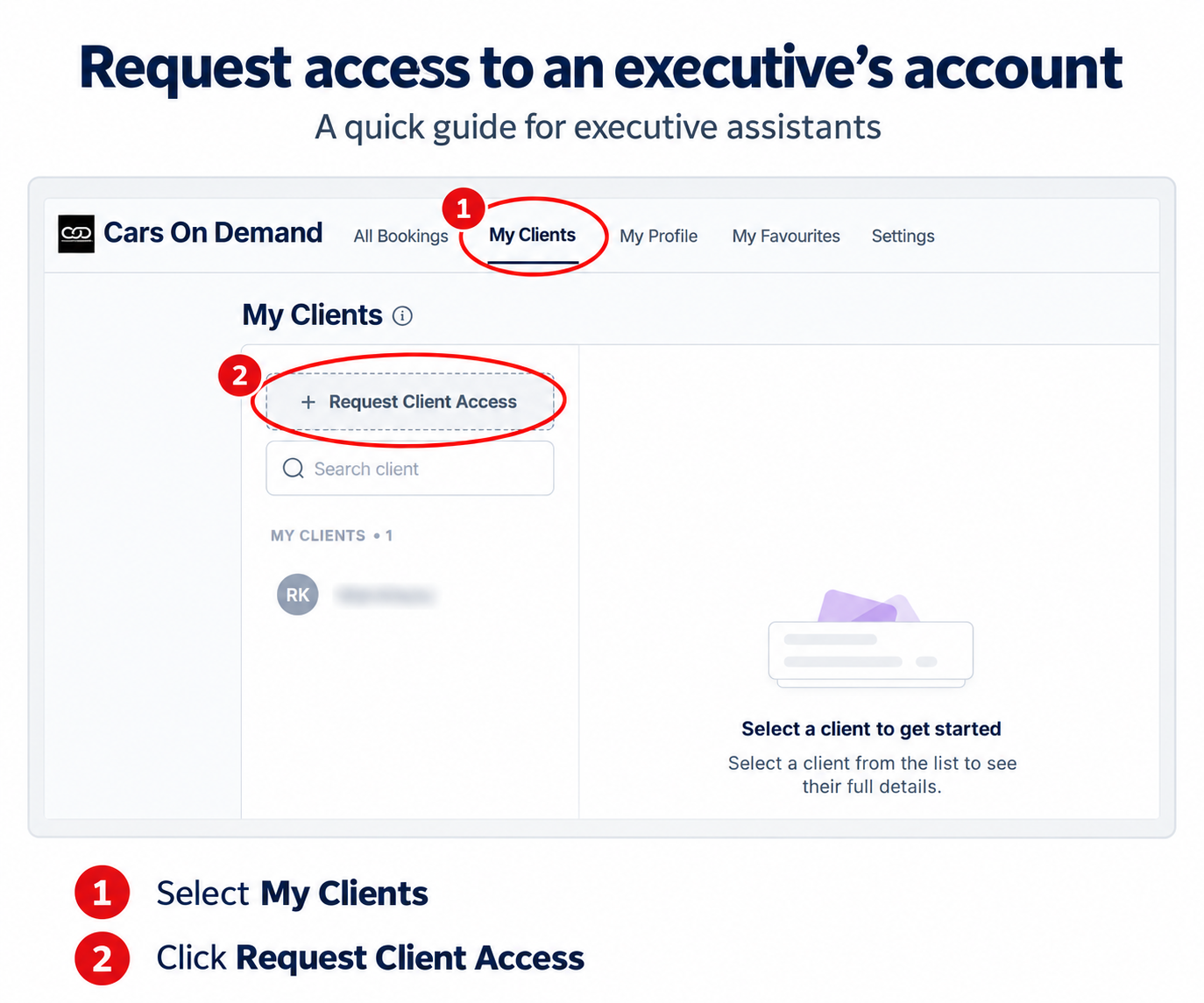
Where to Find Request Client Access
Once you're logged in to your EA account, select My Clients in the top menu, then click Request Client Access. Enter your executive's email address and send the request. Every executive you manage then appears in your client list, each with their own profile and payment card.
Already have an EA account? Skip step 2. Executive already registered with us? Go straight to step 3.
Why it works this way
Less Admin for You. More Control for Your Executive.
Your executive stays independent. They can download the Cars on Demand app and make changes on the go without needing to contact you.
You see everything. Any change your executive makes appears in their profile, which you can view from your own account.
Bookings sync both ways. Anything you book for your executive appears instantly in their app, with live chauffeur tracking.
Cards stay separate. Manage as many executives as you need, with each profile keeping its own credit card.
A handy tip for when you're away from your desk
You can also log in to the rider app as your executive to make bookings and track their car in real time. This is particularly useful when they need a car at short notice and you're not at your computer. The only limitation is that you can't contact the driver from the app, as we connect drivers directly with the passenger.
FAQs
Executive Assistant Account Questions
Can I manage more than one executive?
Yes. Repeat step 3 for each executive you support. Every executive keeps their own profile and payment card, so expenses stay allocated to the right person and reconciliation stays simple.
Why do I need access to my executive's email?
When you register your executive, the system sends a verification link to their email address. You need to click that link to activate their account before you can request access to it.
Can my executive still book and change trips themselves?
Yes. Your executive can use the Cars on Demand app to book or update trips on the go. Any change they make appears in the profile you manage, and anything you book appears in their app.
Does this work outside Sydney?
Yes. The same EA account works for chauffeur and airport transfers in Sydney, Melbourne, Brisbane, Perth, Adelaide, Canberra and Darwin, plus intercity and regional trips across Australia.
Can I get one invoice for all my executives?
Yes. Corporate clients can request automated consolidated tax invoices, sent on the day of the month that suits your accounts process.
What if I get stuck during setup?
Call us on 1300 638 258 and we'll walk you through it. Most EAs are fully set up within five minutes.


